In 2026, a display error on your Google listing could cost you dearly. Just imagine: According to a recent study by BrightLocal, 37% of customers will abandon their visit if a business appears to be open when it’s actually closed. This technical issue, which often goes unnoticed, turns a simple oversight into lost revenue and avoidable negative reviews. Here’s why your business might be showing as “open” by mistake—and how to fix it before your competitors take advantage of the situation.
Why does your Google listing remain in “open” mode even after you’ve closed it?
A customer arrives at your store, smartphone in hand, guided by Google Maps. They see “Open” in bright green, push the door… and find it closed. Immediate frustration. This scenario, which plays out thousands of times every day, has a simple technical explanation: your Google listing hasn’t been updated correctly.
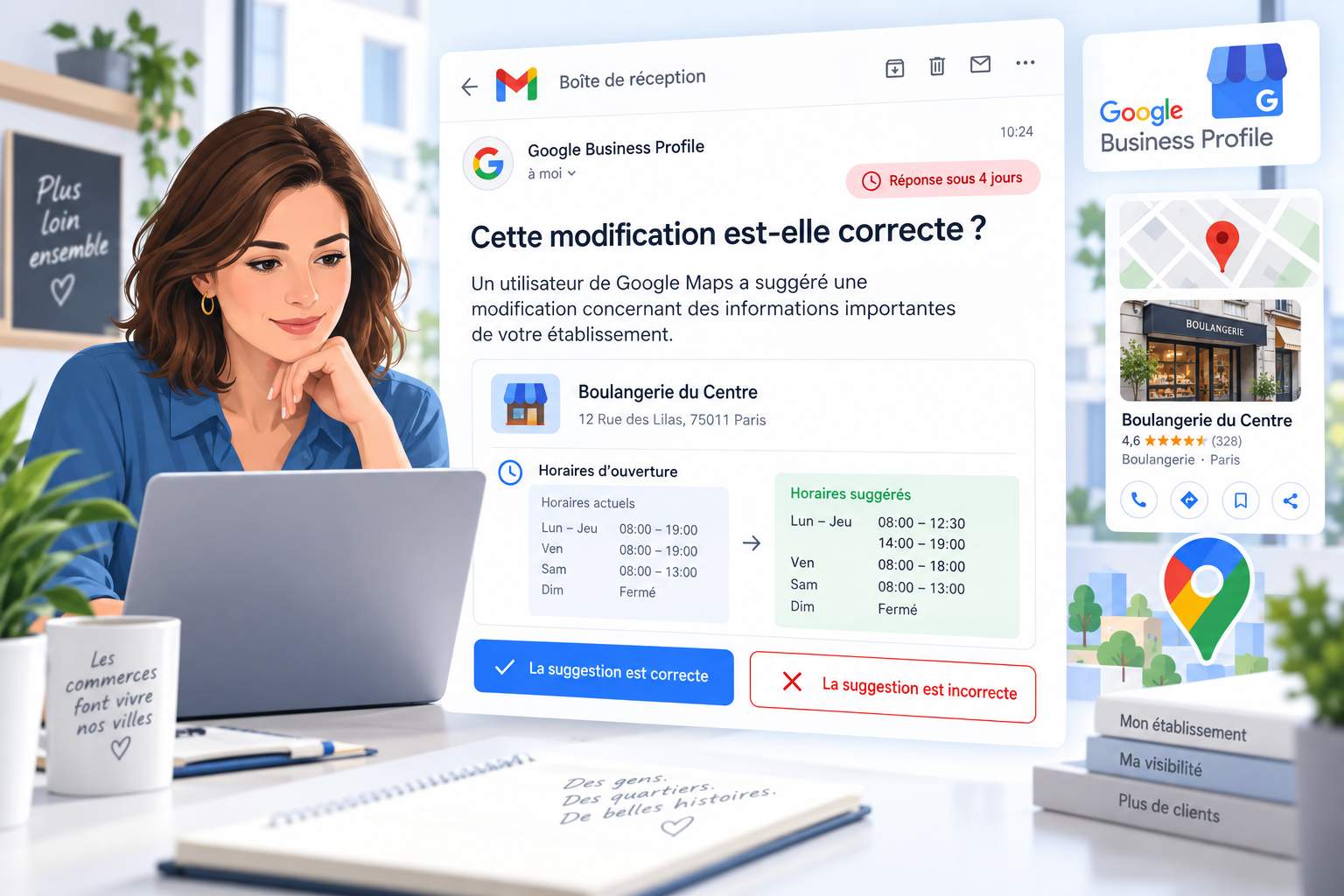
Google uses several sources to determine your business hours: your manual settings, user data, and even analysis of foot traffic around your business. If any of these sources conflict with your official information, the algorithm may decide to display incorrect business hours. For example, if a customer reports that you’re open when you’re actually closed, Google may temporarily ignore your settings to “align” with the perceived reality.
The worst part? This mistake often goes unnoticed for weeks, or even months. For example, a Parisian restaurant owner lost 12% of his monthly revenue before realizing that his listing consistently showed “open” on Mondays, his weekly day off. The solution? Check your settings regularly, especially after changing your hours.
Common pitfalls that throw off your schedule
Certain mistakes tend to recur among business owners. The most common one is forgetting to update special hours after a holiday or vacation. Google saves these settings and applies them year after year, unless you explicitly change them.
Another pitfall: automatic updates. If you use a third-party tool to manage your online presence, a synchronization error could reset your hours without you realizing it. A florist in Lyon, for example, found that his business listing had switched back to “open” on Easter Sunday, even though he had scheduled a one-time closure. The result? About ten unhappy customers and three negative reviews in 24 hours.
Finally, be wary of changes made from a secondary account. If an employee or contractor updates your listing without your primary login credentials, Google may reverse the changes after a few days. Always log in using the business owner’s account.
How to Fix a Schedule Display Error on Google
The first step is to access your Google Business Profile through the official interface. Once logged in, go to the “Info” tab, where you’ll find the section dedicated to business hours. This is where you can edit your standard business hours, as well as add exceptions for holidays or temporary closures.
For short-term closures (less than 7 days), use the “special hours” option. This feature allows you to specify the exact days and times affected, without affecting your regular hours. For example, if you’re closing on a Wednesday for training, this option will display “closed today” on your listing, while maintaining your normal hours for the other days.
If your business will be closed for an extended period, the “temporarily closed” option is recommended. This feature, introduced during the pandemic, adds a red banner that’s visible on your business listing. Be careful, though: it temporarily disables certain features, such as click-and-collect. A clothing store in Bordeaux, for example, saw its online orders drop by 40% after activating this option without notifying its customers.
| Closure Type | Recommended duration | Impact on visibility | Disabled Features |
|---|---|---|---|
| Special Hours | < 7 days | Low (modified display) | None |
| Temporarily Closed | > 7 days | Medium (red band) | Click & Collect, Reservations |
| Permanent Closure | Permanent | High (phased out) | All |
Steps for an Effective Update
Here is the step-by-step procedure to follow for a lasting correction:
1. Log in to your Google Business Profile via the official interface using the business owner’s account.
2. In the “Info” tab, locate the “Hours” section and click the pencil icon to edit.
3. For a short-term closure: select “Add special hours” and specify the dates.
4. For a long-term closure: choose “Close this business” then “Mark as temporarily closed.”
5. Save the changes and wait 24 to 48 hours for them to take effect.
A crucial tip: After making any changes, check the display in incognito mode in your browser. Google sometimes personalizes results based on your browsing history, which can mask a persistent error. A baker in Toulouse was able to avoid a crisis by using this tip to discover that his Monday closing hours weren’t being displayed correctly on certain devices.
The Impact of an Incorrectly Configured Google Business Profile on Your Business
A Google listing with incorrect information doesn’t just frustrate your customers—it also sends negative signals to the local ranking algorithm. Google penalizes businesses with inconsistent data, which can cause your ranking in search results to drop. For example, a café in Nantes dropped three spots in the Local Pack after its listing showed “open” for two weeks even though it was closed for renovations.
Negative reviews are another direct consequence. A customer disappointed by inaccurate information often leaves a scathing review. Worse still, these reviews remain visible even after the error has been corrected, and influence future visitors for months. A study by Harvard Business Review shows that a single negative review can reduce a business’s revenue by 5 to 9%.
Finally, an incorrectly configured listing undermines your credibility. Customers associate inaccurate information with a lack of professionalism. For example, a mechanic in Marseille saw his conversion rate drop by 15% after his listing displayed incorrect hours for a month. The solution? Check the information weekly, especially when your hours change.
How to Turn This Problem into an Opportunity
Instead of suffering the consequences of a mistake, use it as an opportunity to improve your customer relationships. Here are three proven strategies:
1. Plan ahead for closures: schedule your special hours at least one week in advance, and communicate them across all your channels (website, social media, newsletter). One restaurant in Lyon turned its summer closures into a marketing campaign by offering “pre-reservations” for the start of the school year.
2. Monitor changes: Turn on Google alerts to be notified if there are any changes to your listing. This often-overlooked feature allows you to respond quickly in the event of a hack or technical error. A hotel in Strasbourg was able to avert a crisis by noticing that a former employee had changed the opening hours.
3. Turn negative reviews into positive ones: consistently respond to comments regarding display errors by explaining the situation and offering compensation (a discount coupon or a free service). A home decor store in Lille was able to convert 60% of dissatisfied customers into regular buyers using this approach.
Tools to automate the management of your Google calendars
Manually managing schedules on Google can quickly become time-consuming, especially for chains with multiple locations. Fortunately, there are solutions available to automate this process without requiring an expensive subscription.
The simplest tool is still the Google Business Profile mobile app. Available on iOS and Android, it lets you update your hours with just a few taps, no matter where you are. The advantage? Instant synchronization with the desktop version. A tradesperson in Bordeaux uses it to update their hours in real time while on the go visiting clients.
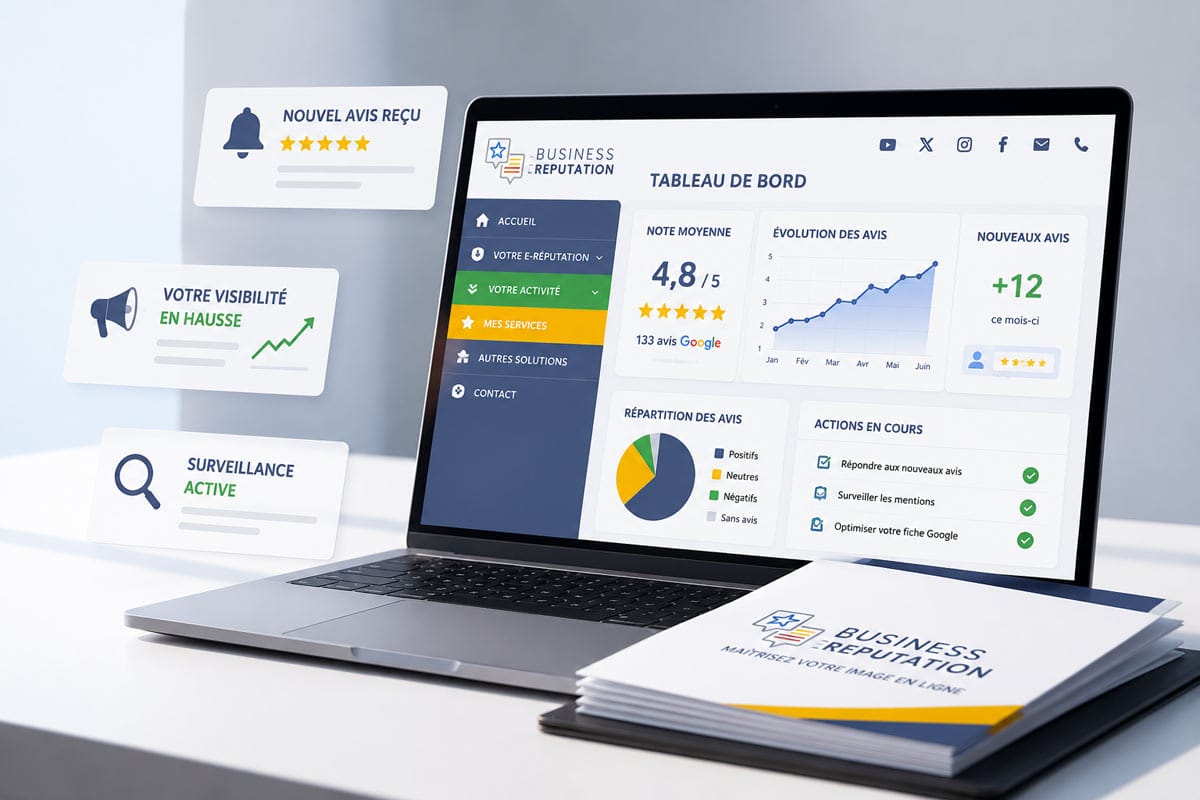
For businesses with complex hours (non-stop operation, variable services), tools like Business E-réputation offer advanced features. Their “Smart Hours” module allows businesses to schedule recurring closures (such as on holidays) and send automatic notifications to customers. A bakery chain in the Île-de-France region was able to reduce its display errors by 90% in six months.
Finally, for businesses with multiple locations, solutions like Partoo or Guest Suite synchronize operating hours across all platforms (Google, Facebook, Apple Maps). Their key advantage? A single interface for managing your entire online presence. A pharmacy chain in the PACA region saved 15 hours of work per month by centralizing its management.
Best Practices for Self-Management
Automation doesn’t mean giving up all control. Here are the golden rules for effective management:
1. Appoint someone to be in charge: Even in a small team, one person should be responsible for checking the schedules every week. A hair salon in Lille avoided a crisis by noticing that an automatic update had deleted its Saturday schedule.
2. Train your team: All employees should know how to report an error. A clothing store in Paris has implemented a “digital watchdog” system, in which each salesperson checks the Google listing when they arrive in the morning.
3. Test regularly: Simulate a Google search from different devices (smartphone, tablet, computer) to check how your listing appears. A restaurant in Nice discovered this way that its hours weren’t displaying correctly on iPhones, even though they looked perfect on Android devices.
4. Document changes: Keep a record of any changes made to your profile. Even a brief record like this can help you trace the source of an error. For example, a mechanic in Toulouse was able to identify that a service provider had changed his hours without authorization.
How Google Verifies Your Schedule and Why It Might Go Wrong
Google doesn’t just take the information you provide at face value. The algorithm cross-checks multiple sources to verify the consistency of your schedule:
– User data: If multiple people report that your business is closed while you’ve listed it as “open,” Google may temporarily override your settings.
– Foot traffic around your address: Using geolocation data, Google analyzes activity in front of your business. A sudden drop in foot traffic may trigger a review.
– Third-party sites: Google scans information available on platforms such as Yellow Pages, TripAdvisor, or your own website. Inconsistencies between these sources and your listing may cause an error.
This verification system, while sophisticated, is not infallible. For example, a café in Strasbourg had its listing show as “closed” for three days because a nearby sporting event had reduced foot traffic. The error persisted until the owner manually reported the problem to Google.
Another common scenario involves stores located in shopping malls. Google sometimes has trouble distinguishing between a store’s hours and those of the mall. For example, a sports store in Lyon displayed the mall’s hours—rather than its own—for a month following an automatic update.
What to Do When Google Ignores Your Corrections
Despite your best efforts, there may be times when Google refuses to apply your changes. Here’s what to do:
1. Check your owner status: Only the account verified as the owner can make certain changes. If you have multiple accounts, sign in with the one that has been verified by Google.
2. Wait 48 hours: it can take up to two days for changes to take effect. A contractor in Marseille avoided unnecessary panic by waiting after making a change.
3. Report the issue to Google: Use the dedicated contact form to describe the error in detail and provide evidence (photos of your open business, screenshots). A restaurant in Bordeaux resolved its issue within 24 hours using this method.
4. Use social media: The @GoogleSmallBiz account often responds quickly to technical issues. A bakery in Toulouse had its issue resolved within 12 hours after tweeting about it with the hashtag #GoogleMyBusiness.
Why does Google show “open” even though I’ve updated my hours?
Google uses several sources to verify your hours, including user reports and geolocation data. If these sources conflict with your settings, the algorithm may temporarily ignore your changes. Wait 48 hours and check again using incognito mode in your browser. If the error persists, report the issue using the Google Business Profile contact form.
How can I prevent my listing from showing incorrect hours during the holidays?
For closures lasting less than 7 days, use the “special hours” option in your Google Business Profile. For longer closures, enable the “temporarily closed” option. Schedule these changes at least one week in advance and communicate them through your other channels (website, social media) to avoid any confusion.
Will temporarily closing my listing affect my search engine ranking?
A temporary closure may slightly affect your visibility, but much less so than a listing with incorrect information. Google prioritizes businesses that provide reliable data. Be sure to restore your standard hours as soon as you reopen to minimize the impact. A study by Moz shows that businesses that properly manage their temporary closures regain their original ranking within 2 to 4 weeks.
What should I do if someone changes my schedule without my permission?
Log in to your Google Business Profile immediately and restore the correct hours. Enable alerts to be notified of any changes. If the problem persists, report the issue to Google via the contact form, specifying that the changes were made without your authorization. In serious cases, you can request a manual review of your listing.
How can I make sure my schedule is displayed correctly everywhere?
Perform a Google search from different devices (smartphone, tablet, computer) using incognito mode. Also check how your business appears on Google Maps and on voice assistants like Google Assistant. For a thorough check, ask friends or coworkers to search for your business from their own devices.