In 2026, 82% of consumers check business hours online before heading out. That figure rises to 95% for local businesses. However, nearly one-third of Google listings display incorrect information, often due to a missed manual update or a synchronization error. The result? Frustrated customers facing a closed door, negative reviews that damage your reputation, and plummeting visibility in the Local Pack. The solution? A simple method to sync your actual hours with your Google listing—without spending hours on it every week.
In this guide, we’ll explain why this synchronization has become a cornerstone of local SEO, how to avoid common pitfalls, and, most importantly, which tools to use to automate the process. Because an up-to-date Google listing is much more than just a matter of convenience—it’s an often-underestimated driver of growth.
Why Your Business Hours on Google Determine Your Revenue
Imagine a customer looking for a café that’s open early in the morning. They type “café open at 6 a.m.” into Google Maps, and your business appears… but with outdated hours. The result: they click on the competitor whose listing is up to date. This scenario plays out thousands of times every day, and every missed opportunity is a lost sale. Operating hours aren’t just practical information—they directly impact three key aspects of your business.
First, your conversion rate. A 2025 study by BrightLocal shows that business listings with specific hours generate 34% more visits than those without. Next, your average rating. A customer who makes a trip for nothing is 2.5 times more likely to leave a negative review. Finally, your ranking in search results. Google prioritizes complete and reliable listings, especially since its algorithm update in 2024, which now incorporates artificial intelligence to verify the accuracy of business hours.
The worst part? These errors aren’t always your fault. Google sometimes automatically updates business hours based on third-party data or user reports. For example, a restaurant owner in Lyon found that his listing showed “closed on Sundays” even though he was open for brunch that day as a special exception. The result: a 20% drop in foot traffic that day. This kind of inconvenience can be costly, especially in a competitive industry.
The Three Types of Schedules You Absolutely Must Master
Your Google listing isn’t limited to standard hours of operation. To fully optimize your listing, three categories of hours must be managed accurately:
| Schedule Type | What is it for? | A concrete example |
|---|---|---|
| Standard Hours | Let customers know your regular business hours. | A bakery opens at 6 a.m. Monday through Saturday and is closed on Sundays. |
| Special Hours | Adjust your business hours for holidays or special events. | A florist closes early on December 24 to prepare Christmas orders. |
| Peak Hours | Help customers avoid peak hours. | A restaurant notes that it gets very busy between noon and 2 p.m. |
Special hours are often overlooked, even though they can make or break a day’s revenue. Take the example of an auto repair shop: during school breaks, it decides to open on Saturday mornings to attract families preparing for long trips. Without updating this information on its listing, the business misses out on a golden opportunity. An oversight like this can lead to dissatisfied customers and reviews that drag down the overall rating.
How to Sync Your Schedules in 3 Steps (Without Spending All Day on It)
Manually synchronizing schedules is a waste of time, especially for retail chains or businesses with multiple locations. Fortunately, there are solutions available to automate this process and prevent errors. Here’s a three-step method that has been tested and approved by hundreds of retailers.
Step 1: Consolidate your time data into a single tool
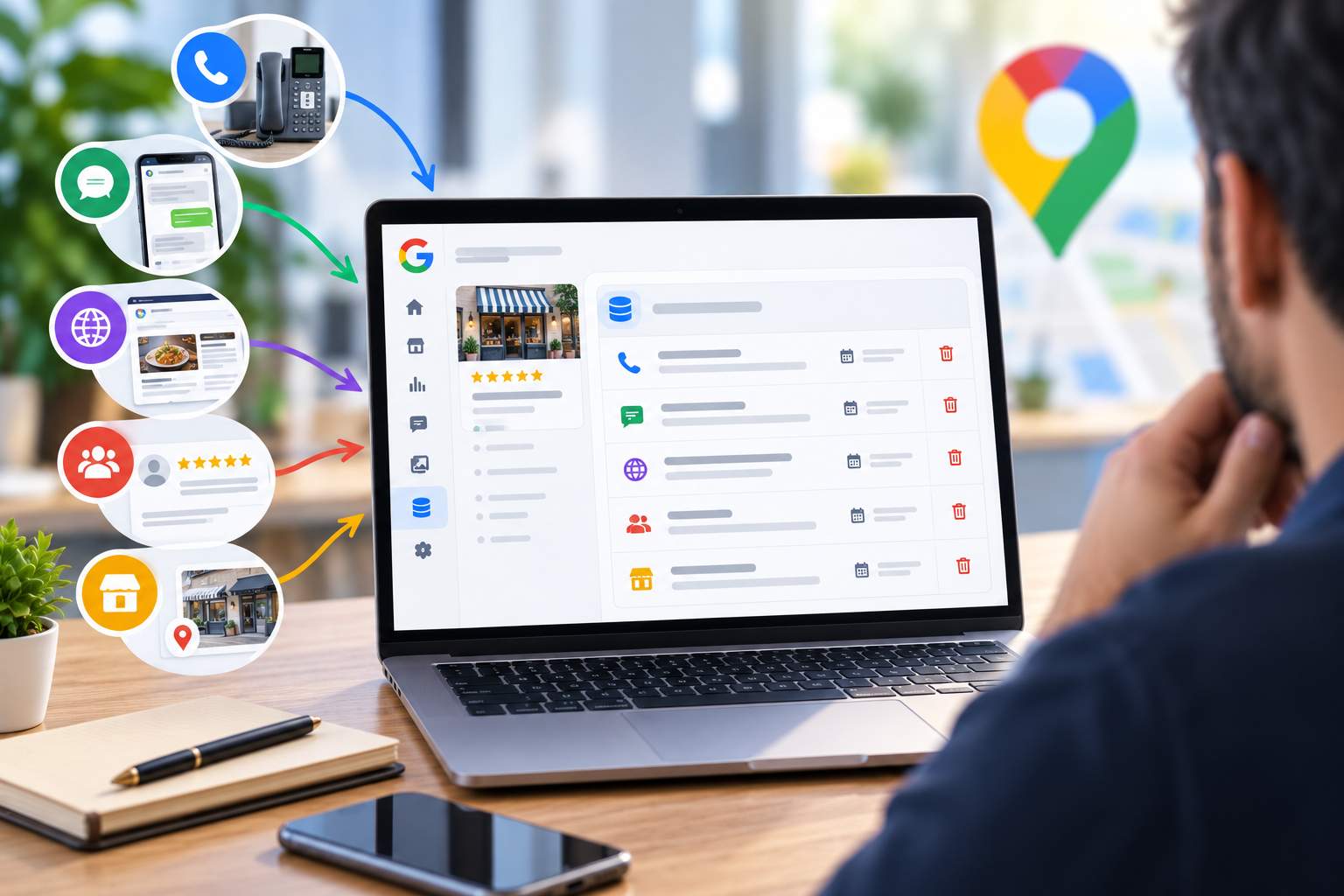
The first mistake? Updating your schedules separately on Google, Facebook, your website, and online directories. Not only is this time-consuming, but it also increases the risk of errors. The solution: use a centralized tool that automatically syncs your schedule data across all platforms.
There are several options available to you:
- Google Sheets + Apps Script: Ideal for those on a tight budget. You create a spreadsheet with your schedule, and a script automatically sends it to your Google Sheet. A detailed guide explains how to set up this system in less than an hour.
- Specialized software: Solutions like Partoo or elloha let you manage your schedules from a single interface and display them in real time on Google, Facebook, and even your website. They also offer advanced features, such as managing special schedules or syncing with your work calendar.
Here’s a real-world example: A dry-cleaning chain with 12 locations uses elloha to update its hours all at once. The result? A time savings of 5 hours per week and a 90% reduction in display errors.
Step 2: Automate updates with smart triggers
Once your data is centralized, the next step is to automate its updates. The goal? To ensure that your schedules sync automatically, even in the event of last-minute changes.
Here’s how to do it:
- Use time-based triggers: Schedule automatic updates for special hours (holidays, vacations, etc.). For example, a restaurant can set up its listing to display “Closed on January 1” as early as December 15.
- Set up alerts: Some tools send a notification if a schedule appears to be inconsistent (for example, closing at 2:00 p.m. on a day that is usually open until 7:00 p.m.). This allows you to quickly correct errors before they affect customers.
- Sync with your work calendar: If you use Google Calendar to manage your appointments or events, tools like Projectfork let you connect it directly to your Google business profile. For example, a hair salon can block off its break times directly in its calendar, and this information is automatically updated on its listing.
A plumber has adopted this method to manage his service calls. Thanks to the synchronization between his calendar and his Google Sheet, his customers can see his availability in real time, which has reduced calls for already booked time slots by 40%.
Step 3: Continuously monitor and optimize
Even with automatic synchronization, regular checks are necessary. Why? Because Google may change your schedules based on third-party data, and because these tools aren’t infallible. Here’s how to stay in control:
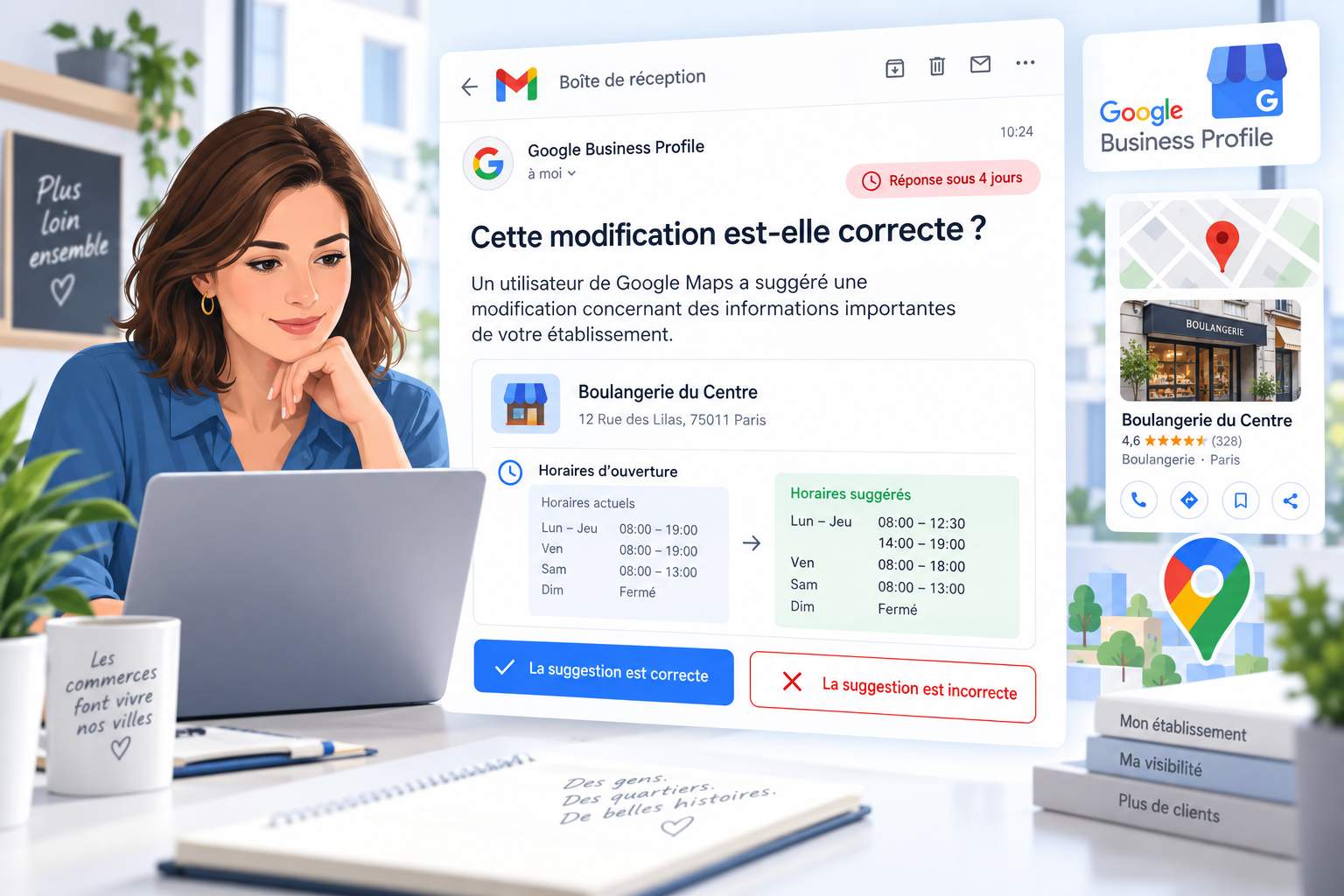
- Enable Google notifications: In your listing settings, check the “Receive email alerts” option. This way, you’ll be notified as soon as a change is made to your schedule, whether by you or by someone else.
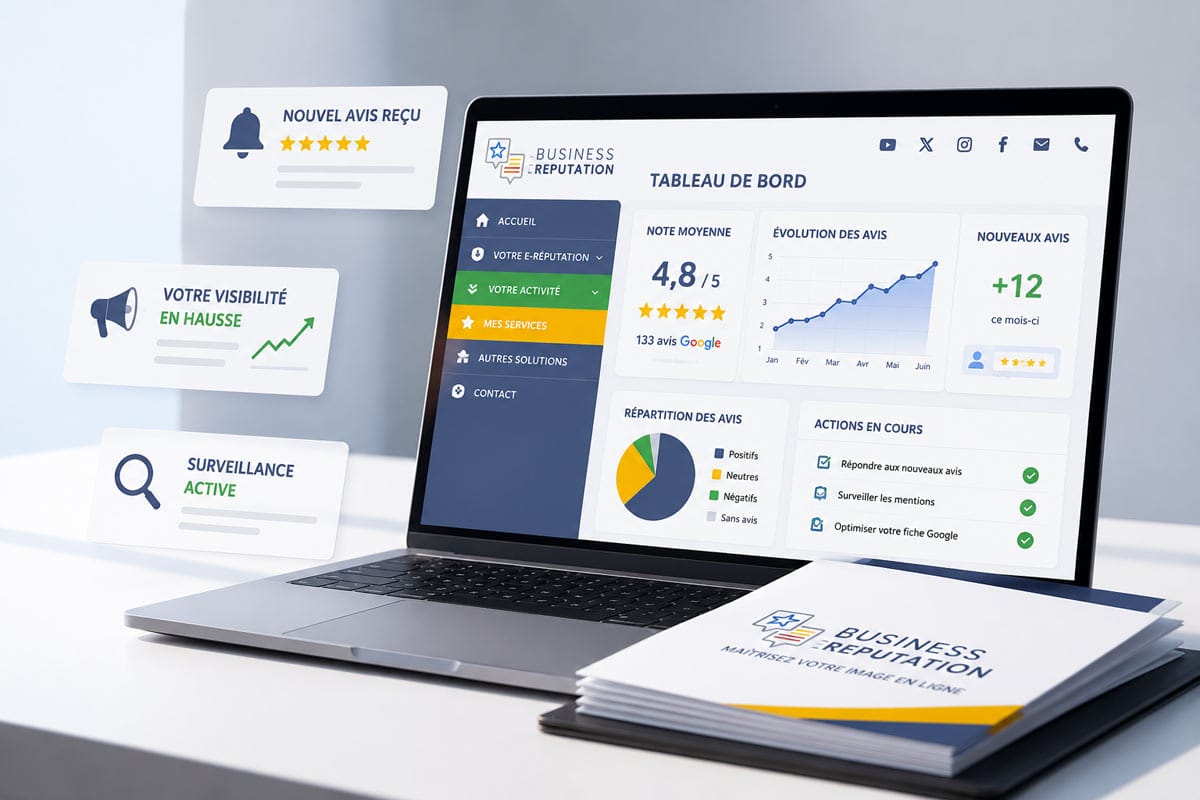
- Conduct monthly audits: Take 10 minutes each month to verify that your schedules are consistent across all platforms. A comparison chart can help you spot discrepancies quickly.
- Use customer feedback: If a customer reports an error (via a review or a message), correct it immediately and thank them. This shows that you are responsive and committed to providing quality service.
A striking example: A hotel in Bordeaux saw its rating drop from 4.5 to 3.8 stars in three months because of incorrect operating hours listed on its profile. After implementing a monthly audit and enabling notifications, it raised its rating to 4.7 stars in six months, while increasing its occupancy rate by 15%.
Pitfalls to Avoid So You Don’t Sabotage Your Visibility
Synchronizing schedules seems simple, but a few common mistakes can undo all your hard work. Here are the most common pitfalls—and how to avoid them.
Pitfall #1: Ignoring special schedules
Holidays, school breaks, or even local events (such as a night market) can disrupt your usual schedule. However, many business owners forget to update their schedules, which leads to frustration among customers.
A baker in Strasbourg lost about ten customers on November 11, 2025—a holiday on which he was open exceptionally from 7 a.m. to 12 p.m. His listing showed “closed,” and customers went to his competitor, located 200 meters away. The solution? Use a shared calendar with his team to anticipate these changes and automatically update his business listing.
Pitfall #2: Not keeping an eye on Google’s automatic changes
Google uses artificial intelligence to verify the consistency of the hours listed on business profiles. If its algorithms detect an inconsistency (for example, different hours listed on two directories), they may change your information without notifying you. This is what happened to a Parisian florist, whose listing said “closed on Sundays” even though the shop was open for weddings.
To avoid this kind of inconvenience, turn on notifications in your Google Business Profile dashboard and check your hours regularly. If Google changes your information, you’ll be able to correct it quickly.
Pitfall #3: Forgetting to sync with your website
Your customers don’t just use Google—many also visit your website before making a trip. If your hours differ between the two platforms, you risk causing confusion. A study conducted in 2025 shows that 68% of consumers abandon a purchase if the information online is inconsistent.
The solution? Sync your Google listing with your website. Tools like CentralApp let you do this automatically, in just a few clicks. A step-by-step guide explains how to set up this synchronization.
Which tools should you choose for seamless synchronization?
The market is full of tools for syncing your schedules, but not all of them are created equal. Here’s a selection of the best solutions, tailored to different budgets and needs.
| Tool | Benefits | Disadvantages | Price |
|---|---|---|---|
| Google Sheets + Apps Script | Free, customizable, ideal for those on a tight budget. | Requires basic technical skills. | Free |
| Partoo | Intuitive interface, cross-platform synchronization, review management. | Monthly subscription; advanced features available for a fee. | Starting at €29/month |
| elloha | Real-time synchronization, management of special schedules, integration with Google Calendar. | Not well suited for very small organizations. | Starting at €19/month |
| CentralApp | Synchronization with the website, review management, user-friendly interface. | Less comprehensive than Partoo or elloha. | Starting at €15/month |
For merchants looking for a turnkey solution, Partoo and elloha offer the most comprehensive features. On the other hand, if you’re on a tight budget, Google Sheets + Apps Script may be sufficient—provided you take the time to set up the system properly.
How can I tell if my schedules are properly synchronized?
To make sure your hours are up to date, view your Google listing in incognito mode (to avoid personalized results). You can also use the Google Business Profile Manager tool, which shows a history of changes. Finally, ask a friend or family member to check your hours from their own device: this will give you an objective view of what your customers see.
What should I do if Google changes my schedule without my consent?
Google may sometimes adjust your business hours based on third-party data or user reports. If this happens, sign in to your Google Business Profile dashboard and correct the information. Also, enable email notifications so you’ll be alerted if any changes are made. If the problem persists, you can contact Google Support to request a review.
Should you include peak hours on your listing?
Yes, especially if your business experiences peak times. Posting your busiest hours helps your customers plan their visit and avoids frustration. For example, a restaurant might indicate that it’s crowded between noon and 2 p.m., or that it’s quieter in the early evening. This information enhances the customer experience and can even attract a specific type of customer, such as older adults who prefer to avoid crowds.
How do you manage schedules for multiple locations?
For retail chains or businesses with multiple locations, use a tool like Partoo or elloha, which lets you manage multiple listings from a single interface. These solutions also offer automatic synchronization features, which help prevent errors and save valuable time. You can also create a centralized spreadsheet (using Google Sheets, for example) and link it to your various listings via Apps Script.
Can I hide my schedule if I’m a freelancer?
Yes, Google allows you to hide your business hours if you don’t have set hours, such as freelancers or consultants. To do this, log in to your Google Business Profile, go to the “Info” section, and select “Hide hours.” Your listing will then display “Variable hours” or “By appointment,” depending on your choice. This helps avoid giving the impression that you’re inactive or disorganized.