In 2026, 73% of French consumers check a business's opening hours online before visiting. However, nearly one-third of Google listings display incorrect information, according to a recent study by BrightLocal. The result? Frustrated customers, closed doors, and a deteriorating online reputation. If your business is among those in these statistics, every incorrect opening-hour entry represents a lost sale and a negative signal sent to Google. Here's why these issues persist, how to correct them, and how to turn this challenge into an opportunity to build customer loyalty.
Why Your Hours on Google Never Match Reality
A customer who arrives at a store that's closed because of incorrect hours is unlikely to return. Worse, they'll leave a negative review or report the error to Google. There are many reasons for these inconsistencies, but three factors stand out: autocomplete suggestions, forgotten updates, and algorithms that prioritize "popular" data over official information.
Google uses users' GPS data to estimate peak hours and, in some cases, business hours. If several customers visit your establishment outside of your reported hours, the algorithm may suggest a change. A restaurant that officially closes at 10 p.m. but whose last customers leave at midnight may therefore have its hours automatically adjusted. While this feature is convenient for users, it can become a pitfall for business owners who don't monitor their listings.
Another common scenario: seasonal or special operating hours. A hotel that closes in January but forgets to mention it on its Google listing will see its reservations drop. Since users won't see any indication of a temporary closure, they'll assume the business is open and go elsewhere. The same goes for holidays: a bakery that doesn't specify its hours for July 14 will lose early-morning customers coming to pick up their baguettes.
Local Guides: The Invisible Influencers Who Make Decisions for You
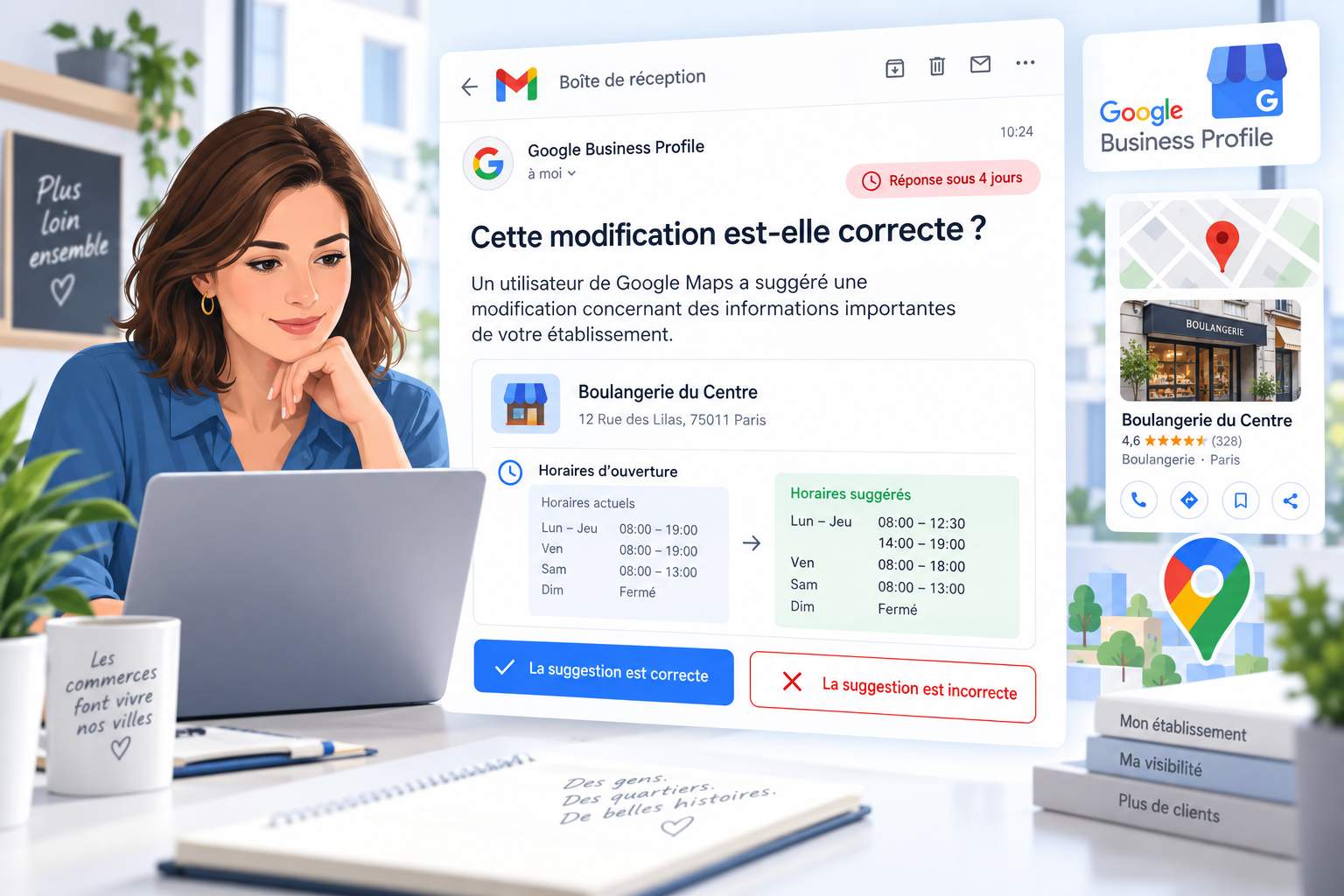
Google places a great deal of trust in Local Guides—volunteer users who rate and review businesses. Their suggested changes are often implemented more quickly than those made by the business owner. A Local Guide who reports that your store opens at 10 a.m. instead of 9:30 a.m. may, without meaning to, mislead dozens of customers. The problem? These changes aren't always verified by Google before they're published.
To regain control, you need to take proactive steps. Regularly check the suggestions in your Google Business Profile interface and respond to notifications consistently. A well-maintained listing—with up-to-date hours and responses to reviews—signals reliability to the algorithm. Conversely, a neglected listing becomes an easy target for automatic changes or erroneous suggestions.
How to Adjust Your Schedule in Less Than 10 Minutes (and Avoid Common Pitfalls)
Updating your schedule on Google seems simple, but a few common mistakes can make the task more complicated than it appears. Here's a step-by-step guide, along with the pitfalls to avoid.
First step: Log in to your Google Business Profile via Google Search or Google Maps. Click "Edit listing," then "Business information." In the "Hours" tab, you'll find several options:
- Open during standard hours: for establishments with regular hours.
- Open with no standard hours: if your hours vary too much to be listed (e.g., a doctor who sees patients by appointment).
- Temporarily closed: ideal for seasonal closures or construction.
- Permanently Closed: Use this option only if your business is ceasing operations.
For split schedules (e.g., 9 a.m.–12 p.m. and then 2 p.m.–7 p.m.), use the "+" button next to the relevant day to add a second time slot. This feature is often overlooked, even though it prevents customers from thinking you're closed all day.
Once your hours are saved, it may take up to 48 hours for Google to approve them. During this time, avoid making any further changes, as this may delay the process. If your hours are rejected, check to make sure they comply with Google's guidelines: no overlapping time slots, no temporary closures lasting more than 6 days without an update, etc. This guide details the most common reasons for rejection and how to avoid them.
| Schedule Type | When should you use it? | A concrete example |
|---|---|---|
| Standard Hours | Businesses with fixed hours (e.g., stores, restaurants) | Monday–Friday: 9 a.m.–7 p.m. |
| Split Schedules | Businesses that take a break during the day (e.g., bakeries, pharmacies) | Tuesday: 7 a.m.–1 p.m. / 4 p.m.–8 p.m. |
| Special Hours | Holidays, special events, and temporary closures lasting less than 6 days | January 1: 10 a.m.–6 p.m. |
| Temporary Closure | Closures lasting more than 6 days (e.g., annual leave, construction) | Closed August 15–30 |
| Additional Hours | Specific services (e.g., happy hour, delivery, curbside pickup) | Happy Hour: 5:00 p.m.–8:00 p.m. |
Extended hours: An Underrated Asset for Boosting Your Visibility
Many business owners are unaware that they can add additional hours for specific services. For example, a bar can specify its happy hour hours, a restaurant its delivery hours, or a hotel its breakfast hours. This information appears in addition to the standard hours and lets customers know exactly when to take advantage of your offers.
To enable them, go to the "Hours" tab on your business listing and click "Add additional hours." Select the type of service (e.g., "Delivery," "Curbside Pickup," "Brunch") and specify the corresponding time slots. Please note: These hours must fall within your standard operating hours. A restaurant open from 11 a.m. to 11 p.m. cannot offer a brunch service from 9 a.m. to 11 a.m., as that would fall outside its official operating hours.
These details may seem trivial, but they make all the difference in a competitive market. A customer looking for a café open early in the morning will choose one that clearly lists its breakfast hours, rather than one that's vague about them. In addition, Google uses this information to refine its search results. A well-filled-out listing is more likely to appear in the Local Pack—the trio of businesses featured at the top of local search results.
Holidays and Special Closures: The Trap That Costs a Lot
Holidays are a common source of errors on Google Business Profiles. Many business owners forget to include this information, which leads to customer disappointment and negative reviews. However, Google makes it easy to manage these exceptions with a dedicated tab: "Holiday Hours."
For each holiday, you can specify whether your business is open, closed, or open with modified hours. For example, a supermarket might specify that it closes early on December 24, while a museum might announce that it will be open on May 1. This information is crucial because it prevents customers from making a trip for nothing.
Another scenario: temporary closures. If your business is closed for renovations or annual leave, use the "Temporarily Closed" option. Unlike simply deleting your listing, this option keeps your listing visible on Google Maps and in search results. This way, customers can see that you're still in business but are temporarily unavailable. Once you reopen, simply restore your regular hours.
For seasonal businesses (e.g., ski resorts, campgrounds), this feature is essential. A mountain cabin that closes in April must clearly indicate this to avoid unpleasant surprises. When it reopens in December, a simple update to the hours is all it takes to boost visibility again.
How does Google decide to change your schedule without your consent?
Google doesn't just display the information you provide. The algorithm cross-references your data with that of other users, Local Guides, and other online platforms. If these sources differ, Google may choose to prioritize "popular" data over yours. Here are the criteria that influence these changes:
- The frequency of suggestions: the more often users suggest a change, the more likely Google is to implement it.
- Source reliability: Suggestions from Local Guides take priority, as Google considers them highly credible.
- Outdated data: A record that hasn't been updated for several months is more likely to have its schedules automatically changed.
- Consistency across platforms: If your operating hours differ between Google, Facebook, and your website, Google may choose to align them with the most widely used version.
To minimize these risks, make sure your business hours are consistent across all platforms. Use tools like Partoo or Yext to centralize your information and automatically update it across local directories. A consistent and up-to-date listing signals reliability to Google, which will be less likely to modify your data without your consent.
Why a scheduling error can ruin your reputation in 24 hours
A customer who makes a trip for nothing because of incorrect hours won't just walk away empty-handed. In 60% of cases, they'll leave a negative review, according to a study conducted by ReviewTrackers in 2025. And these reviews have a direct impact on your criticality score, a metric used by Google to assess the reliability of your business.
Take, for example, a bakery in Lyon whose posted hours indicated it closed at 7:00 p.m., when in fact it closed at 6:30 p.m. Within a week, it received three negative reviews from dissatisfied customers. As a result, its average rating dropped from 4.7 to 4.2, and its ranking in Local Finder fell by five spots. A month later, its revenue had fallen by 12%.
Negative reviews related to hours of operation are particularly damaging because they touch on a fundamental aspect of the customer experience: trust. A customer who arrives to find the doors closed feels let down, and this frustration often results in scathing comments. Worse still, these reviews are visible to all internet users, including those who weren't familiar with your business before.
How to Respond to Negative Reviews About Schedules (and Minimize the Damage)
The first rule: Always respond, even to the most aggressive reviews. A polite and professional response shows that you take the issue seriously and are committed to resolving it. Here is an example of an effective response:
"Hello [First Name], we're sorry you had a bad experience. Our hours have indeed been updated recently, and we've corrected the error on our Google listing. We hope to have the opportunity to welcome you back soon so we can provide you with better service. Please feel free to contact us directly if you'd like more information."
This response serves several purposes:
- She acknowledges the mistake and apologizes, which defuses the customer's frustration.
- She lets the other readers know that the problem has been resolved.
- It paves the way for reconciliation by inviting the customer to return.
Another tip: Use Google Posts to announce changes to your hours. These posts, which appear directly on your business listing, let you keep your customers informed in real time. For example, a restaurant that changes its hours for the holidays can post something like: "For Christmas, we'll be open until midnight—a special exception! Reserve now."
Finally, monitor your listing regularly to catch errors before they lead to negative reviews. Tools like Google Alerts or Mention can alert you as soon as a user reports an inconsistency. The faster you act, the less severe the consequences will be.
Essential Tools for Automating Your Schedule Management
Manually managing schedules on Google can quickly become time-consuming, especially for retail chains or businesses with complex scheduling requirements. Fortunately, there are tools available to automate this task and prevent errors.
The first of these is the LocalBusiness JSON-LD schema generator. This structured data format allows you to embed your business hours directly into your website's code. Google can then automatically retrieve them and display them on your business listing. The benefit? Your hours are updated in real time, without any manual intervention. This free tool walks you through the process of creating your schema step by step.
For business owners who manage multiple locations, solutions like Partoo or Yext centralize information and distribute it across all local directories. There's no longer any need to log in to each platform to update your hours—a single change is all it takes to sync all your listings. These tools also offer advanced features, such as scheduling special hours or managing customer reviews.
Finally, the local pages on your website play a key role. A dedicated page for each location—including its hours, address, and contact information—strengthens your local SEO. Google uses this information to verify the consistency of your data and improve your ranking in search results. Be sure to include a link to your Google Business Profile to encourage customers to leave a review.
Why Google Prioritizes Listings with Up-to-Date Hours (and How to Take Advantage of It)
Google doesn't just display your hours of operation—it uses them to evaluate the quality of your listing. A well-filled-out listing with accurate and regularly updated hours sends a positive signal to the algorithm. As a result, your business is more likely to appear in the Local Pack—the trio of businesses featured at the top of search results.
In 2026, Google enhanced its algorithm to detect abandoned or poorly maintained business listings. Businesses that do not update their information are penalized, while those that maintain their listings receive a boost. For example, a bakery that lists its closing times on holidays will see its ranking improve, because Google considers it to be reliable and customer-focused.
Another benefit: up-to-date hours reduce the bounce rate. A customer who can easily find your hours is more likely to visit and become a loyal customer. Conversely, a listing with incorrect information causes frustration and prompts users to leave the page quickly. Google interprets this behavior as a sign of poor quality and lowers the business's ranking.
To maximize your chances, combine several best practices:
- Update your schedules as soon as they change, even if it's just for one day.
- Use the special schedules for holidays or special events.
- Add additional hours for specific services (delivery, curbside pickup, happy hour).
- Respond to negative reviews about your hours to show that you take these issues seriously.
- Synchronize your schedules across all platforms (website, social media, local directories).
By following these tips, you'll turn a simple Google listing into a real asset for your business. Not only will you avoid costly mistakes, but you'll also improve your online visibility and reputation.
Can a negative review related to incorrect hours be removed?
No, Google does not remove reviews simply because they are negative. However, if a review is false or defamatory, you can report it through your Google Business Profile. For reviews regarding incorrect hours, the best approach is to respond politely and let the customer know that the issue has been resolved. This shows other readers that you take feedback seriously.
How long does it take for Google to approve my new hours?
It usually takes Google between 24 and 48 hours to validate and display your new hours. During this time, avoid making any further changes, as this may delay the process. If your hours still haven't been updated after 48 hours, make sure they comply with Google's guidelines (no overlapping time slots, no temporary closures lasting more than 6 days without an update).
How can I prevent users from changing my schedule?
You can't completely prevent users from suggesting changes, but you can minimize the risks by keeping your listing up to date. The more accurate and consistent your information is, the less reason Google will have to prioritize user suggestions. Check the notifications in your Google Business Profile regularly and respond promptly to suggestions. A well-maintained listing signals reliability to the algorithm.
Why aren't my hours displayed on Google Maps?
There are several possible reasons for this issue: your hours haven't been approved by Google yet, your listing is marked as "permanently closed," or your hours don't comply with Google's rules (e.g., overlapping time slots). Also check that your business is listed in the correct category (e.g., "Restaurant" rather than "Grocery Store"). If the problem persists, check your Google Business Profile to see if there are any errors that need to be corrected.
Do my extra hours affect my search engine ranking?
Yes, adding extended hours can improve your local search rankings because they provide users with more detailed information. Google uses this data to refine its search results and better respond to users' queries. For example, a bar that lists its happy hour hours is more likely to appear in results for searches like "happy hour near me." These details also boost the credibility of your business listing in the eyes of the algorithm.