In 2026, 78% of consumers check business hours online before heading out. That figure rises to 92% for local businesses. However, nearly one-third of Google Business Profile listings display incorrect information, according to a recent study by BrightLocal. The result? Frustrated customers, lost sales, and a reputation that’s suffering without you even realizing it. The good news is that updating your hours takes only a few minutes. And those few minutes can make the difference between a customer walking through your door and another choosing the competitor next door.
Why Up-to-Date Hours on Google Business Profile Make All the Difference
Imagine the scene. A potential customer is looking for a café near their home at 6:30 p.m. Your business appears at the top of Google’s search results, with a 4.8-star rating. They click on it, check the hours… and see “Closed at 6 p.m.” They leave, disappointed, and head to a competitor whose listing says “Open until 8:00 p.m.” A simple mistake in your hours has just cost you a sale, a positive review, and perhaps a loyal customer.
Google’s algorithms, which are increasingly influenced by artificial intelligence, penalize listings with inconsistent information. A 2025 study by Moz revealed that businesses with specific hours of operation see a 17% boost in local rankings. And that’s not all. Voice assistants like Google Assistant and Siri rely on this data to answer queries such as “Where can I find a bakery that’s open right now?” If your hours are incorrect, your business simply won’t exist for these users.
Let’s take the example of La Maison du Pain, a bakery in Lyon. In January 2026, its manager forgot to update the hours after the holidays. The result? A 22% drop in foot traffic in just one week, according to the bakery’s own figures. Once the correction was made, foot traffic returned to normal within 48 hours. The lesson is clear: up-to-date hours are like an online neon sign. They attract customers, put them at ease, and drive conversions.
How to Change Your Schedule in Less Than 5 Minutes
The process is simple, but it requires careful attention to detail. Here are the steps to follow, whether you’re using a computer or a mobile device.
Step 1: Go to your Google Business Profile
Start by signing in to the Google account associated with your business. Go to business.google.com and select the relevant location. If you manage multiple locations, choose the one you want to edit. Tip: Always use the same Google account to avoid confusion, especially if you delegate management to an employee or service provider.
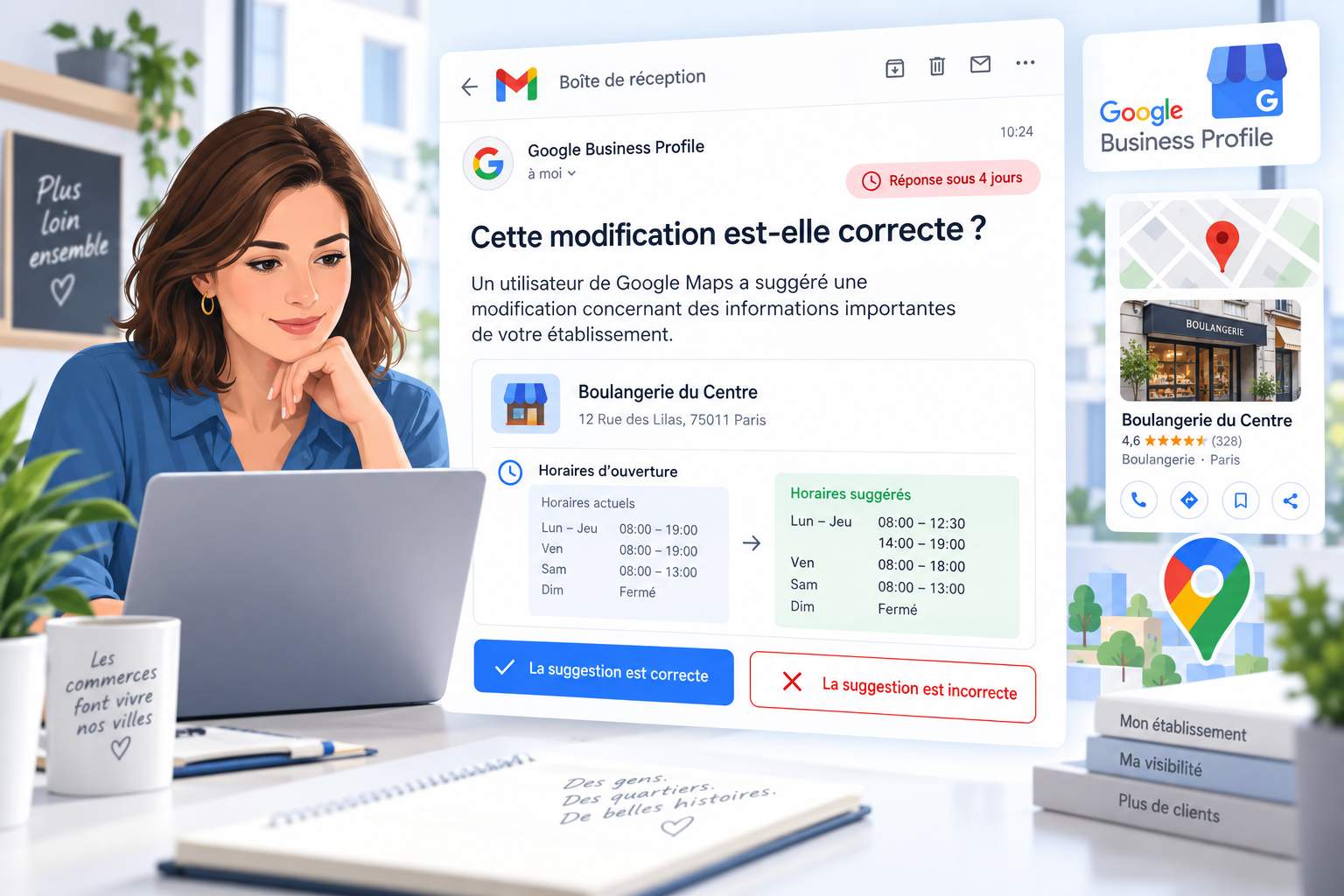
For those who prefer to manage their listing from their smartphone, the Google Business Profile app is available on iOS and Android. It offers the same features as the desktop version, with the added benefit of real-time notifications. For example, if a customer reports an error in your business hours, you’ll be alerted immediately and can fix the issue with just a few clicks.
Step 2: Go to the “Info” section
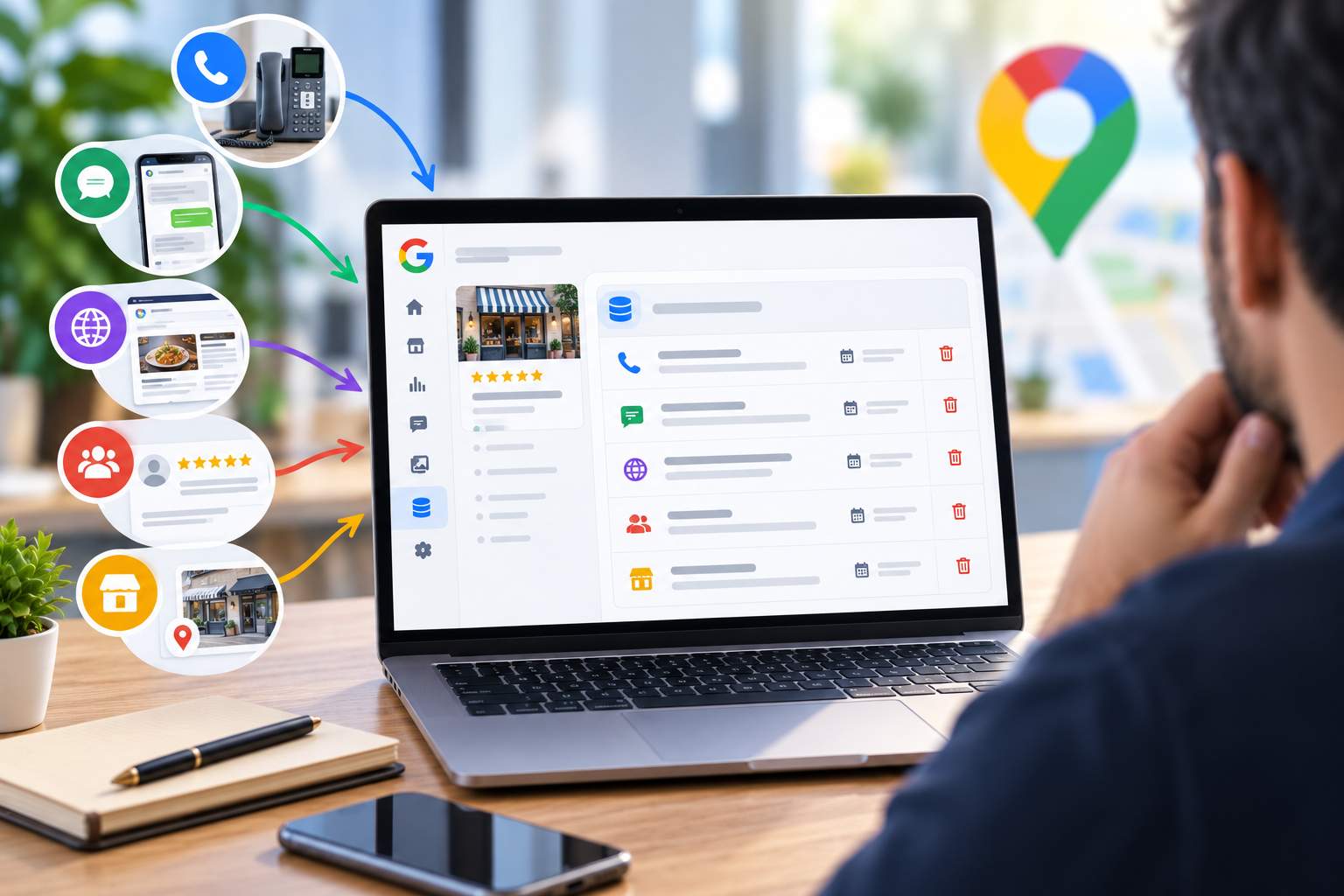
Once you’re logged in, look for the “Info” tab in the left-hand side menu. This is where you’ll find all your business’s basic information: name, address, phone number, website, and, of course, hours of operation. Click the pencil icon next to the “Opening Hours” section. A drop-down menu will appear, allowing you to edit your hours on a day-by-day basis.
If you run a business with variable hours—such as a restaurant that closes early on Sundays or a store that’s only open in the afternoon on Wednesdays—this section is your best resource. You can also add special hours for holidays or special events. For example, if you close early on December 24, make sure to clearly indicate this to avoid any unpleasant surprises.
Step 3: Save and publish your changes
Once you’ve updated your hours, click “Apply” and then “Publish. “ It may take Google a few minutes or even a few hours to approve your changes. In some cases, a manual review is required, especially if you make frequent changes. To speed up the process, make sure your listing is complete and consistent: exact address, correct business category, and recent photos.
A small detail that makes all the difference: if you change your hours for a limited time (such as during summer vacation), don’t forget to reset them to normal once that period is over. Nothing is more frustrating for a customer than traveling all the way to your location only to find the doors closed because the “temporary” hours were left in place by mistake.
Pitfalls to Avoid So You Don’t Sabotage Your Visibility
Updating your schedule seems simple, but a few common mistakes can undo all your hard work. Here’s what you absolutely must avoid.
| Common Mistake | Consequence | Solution |
|---|---|---|
| Forgetting to update the schedules after a change | Dissatisfied customers, negative reviews, loss of trust | Set reminders in your calendar or use the mobile app for automatic notifications |
| Do not include special hours (holidays, events) | Misinformation among customers, decline in foot traffic | Use the “Special Hours” feature to report exceptions |
| Leaving fields blank or incomplete | Listing less visible in search results | Fill out all sections, even if some do not apply to your business |
| Changing schedules without verifying consistency with other platforms | Inconsistencies That Undermines Your Credibility | Make sure the hours are the same on your website, Facebook, and other online directories |
Let’s take the example of a Parisian hair salon, Chez Sophie. In 2025, the owner updated the hours on Google Business Profile but forgot to do the same on the salon’s website and Facebook page. The result? Customers arrived at the time listed on Google but found the salon closed because the other platforms showed different hours. Negative reviews started pouring in, and it took three weeks to restore trust. This was a mistake that could have been avoided with a little more attention to detail.
Special Schedules: How to Manage Them Without Making Life More Complicated
Holidays, special closures, or one-time events can quickly become a headache. However, Google Business Profile offers simple tools to manage these situations without spending hours on them.
Add temporary schedules in just a few clicks
In the “Info” section, look for the “Add special hours” option. There, you can specify different hours for a specific date, such as January 1 or July 14. For example, if your store closes at 4 p.m. on December 24 instead of 7 p.m., this feature lets you inform your customers without changing your regular hours.
Here’s a tip: Plan these changes in advance. If you know your restaurant will be closed for renovations from August 15 to 30, add this information as early as July. Your customers will appreciate the transparency, and you’ll avoid last-minute calls or messages.
Automate reminders so you don’t forget anything
For business owners who manage multiple locations or have complex operating hours, automation is an effective solution. Tools like the Local Business JSON-LD schema generator let you embed your hours directly into your website’s code. This way, any changes made on Google Business Profile can be automatically synced with your site, preventing inconsistencies.
Another tip: Use reminders in Google Calendar or apps like Trello to make sure you don’t forget to update your schedules before key periods. For example, set a reminder one week before school breaks or holidays. This will save you valuable time and reduce the risk of errors.
Why Your Google Business Profile Is Your Best Salesperson
Your Google Business Profile isn’t just an online directory. It’s a powerful tool that works for you 24 hours a day, 7 days a week. And in 2026, with the rise of voice search and smart assistants, its role is more crucial than ever.
The Impact of Business Hours on Your Local SEO
Google prioritizes listings that provide accurate and up-to-date information. A 2025 study by Whitespark showed that businesses with accurate hours appear 23% more often in the Local Pack (the three local results displayed at the top of Google searches). And that’s not all: these same businesses enjoy a 15% higher click-through rate than those with incorrect hours.
Let’s take the example of an auto repair shop in Bordeaux. In 2024, the manager decided to update the shop’s hours every Monday morning, based on that day’s appointments. The result? A 30% increase in online quote requests, simply because customers knew exactly when the garage was open and available. Proof that accuracy pays off.
How to Turn Your Customers into Brand Ambassadors
Up-to-date schedules are great. Up-to-date schedules and an optimized listing are even better. Here are a few tips to take it a step further:
- Add recent photos: A restaurant that updates its food photos every month attracts 40% more visitors, according to a TripAdvisor study. Show that your restaurant is vibrant and welcoming.
- Respond to reviews —even negative ones. A professional and courteous response can turn a dissatisfied customer into an advocate. According to a Podium survey, 89% of consumers read responses to reviews before choosing a business in 2026.
- Post updates: The “News” section of Google Business Profile lets you share promotions, events, or new developments. It’s a great way to keep your listing active and visible.
A concrete example: Le Comptoir du Vin, a wine shop in Nantes, began featuring a “Bottle of the Week” on its Google listing. The result? A 25% increase in in-store visits and an average rating that rose from 4.2 to 4.7 stars in six months. Proof that a few consistent efforts can have a huge impact.
What to Do If Your Schedule Isn’t Displaying Correctly
Sometimes, despite your best efforts, changes don’t appear as expected. Here’s how to resolve the most common issues.
Problem 1: The schedules are not updated after publication
If your new schedule doesn’t appear after 24 hours, start by checking to make sure you clicked “Publish. “ Next, refresh the page or clear your browser’s cache. If the problem persists, it may be due to a delay in Google’s approval process. In that case, please wait 48 hours before reporting the issue.
For those who are impatient, here’s a tip: use the Google Business Profile mobile app. Changes are often approved there more quickly than on the desktop version.
Problem 2: Different times are displayed on different devices
This is a rare but annoying bug. If your business hours appear differently on mobile and on a computer, it may be due to an outdated cache. Ask a friend or coworker to check your listing from their device. If the problem is confirmed, report it directly to Google via the Google Business Profile Help Forum.
Another tip: Make sure you don’t have multiple listings for the same business. This often happens when multiple Google accounts are associated with the same business. In that case, merge the listings to avoid inconsistencies.
Problem 3: Special schedules are not displayed
Special schedules, such as those for holidays, may take longer to appear. Make sure you’ve selected the correct date and saved your changes. If nothing changes after 48 hours, delete the special schedule and recreate it. Sometimes, a simple temporary glitch can be resolved this way.
For businesses with complex schedules, such as hotels or gyms, it can be helpful to create a summary table of special schedules for the year. That way, you won’t miss any dates and can add them all at once.
Can I change my schedule using the mobile app?
Yes, the Google Business Profile app lets you edit your hours just as easily as on a computer. Download it on iOS or Android, sign in to your account, and follow the same steps as on the desktop version. The benefit? You’ll receive real-time notifications for customer reviews or reports.
How long does it take for the changes to become visible?
Changes usually appear within 24 hours. However, in some cases, Google may take up to 48 hours to process the changes, especially if your listing is new or if you make frequent updates. To speed up the process, make sure your listing is complete and consistent.
What should I do if a competitor changes my schedule without my consent?
If you notice that a competitor or a third party has changed your business hours without your permission, immediately report the issue to Google using the complaint form. Provide evidence (photos of your sign, invoices, etc.) to support your request. Google typically processes these reports within 72 hours.
Is it possible to automate the updating of schedules?
Yes, but proceed with caution. Tools like the Local Business JSON-LD Schema Generator allow you to synchronize your hours between your website and Google Business Profile. However, a manual review is still recommended to avoid errors, especially in the event of unusual changes.
Why aren’t my hours displayed on Google Maps?
If your hours aren’t showing up on Google Maps, first check to make sure they’re listed on your Google Business Profile. Next, make sure your business is geolocated correctly. If the problem persists, report it through the Google Help Forum. Updates on Maps can sometimes take a little longer than on the standard search results.