A customer who arrives at a closed store when Google says it’s open loses more than just a purchase. They lose trust, and your business loses not only immediate revenue but also a reputation that quietly deteriorates. By 2026, with the rise of voice assistants and AI-optimized local searches, a simple scheduling error could cost you up to 30% of your annual revenue during the affected time slots. This isn’t a hypothetical scenario—it’s a reality observed among hundreds of business owners who saw their foot traffic plummet after weeks of incorrect information.
This guide explains how to identify these hidden costs, quantify them, and eliminate them before they become a financial drain. You’ll discover why a craftsman in Lyon lost €12,000 in six months due to poorly coordinated schedules, and how a Parisian bakery won back 80% of its lost customers in three weeks using a simple method. The challenge? Turning a daily frustration into a tool for building customer loyalty.
Why a customer who finds a door closed might never come back
It’s a universal experience: you arrive at a store, impatient after a 20-minute trip, and the door is closed. Your first instinct? Check Google. If the posted hours say “open,” disappointment turns to anger. Worse, that anger isn’t always expressed on the spot. It spreads where it hurts the most: in online reviews, on social media, and in conversations with friends.
A 2025 study by BrightLocal reveals that 68% of consumers have abandoned a purchase after finding inconsistent information about business hours. Of those, 42% never returned. The problem isn’t limited to the loss of a single sale. It’s a breach of trust that extends far beyond the first incident. A customer who finds the door closed once might forgive you. Twice, and they’ll assume your business is poorly managed. Three times, and they’ll share their negative experience with a dozen people.
Let’s take the example of a restaurant in Bordeaux. For six months, its Google listing showed extended weekend hours, even though the restaurant was actually closing earlier. The result? 15% of reservations were canceled at the last minute, and the average rating dropped from 4.5 to 3.8 stars. It took the restaurant owner three months to identify the source of the problem, during which time he lost thousands of euros in revenue and marketing costs spent on attracting new customers. The solution? A simple weekly check of the hours, but the damage had already been done.
The hidden cost isn’t just measured in lost euros. It also includes the time spent handling complaints, processing refunds, and working to regain customer trust. Not to mention the impact on team morale, as staff have to deal with dissatisfied customers even though they’re not at fault. In a landscape where Google’s algorithms and voice assistants prioritize businesses with recent, positive reviews, a single scheduling error can cause you to disappear from the top pages of search results.
How to Calculate the True Cost of an Out-of-Date Schedule
An inaccurate schedule does more than just frustrate a customer. It triggers a cascade of direct and indirect costs that weigh on your profitability. To quantify these costs, you need to look beyond the lost average basket size and factor in elements that are often overlooked. Here’s how to do it, step by step.
The basic calculation: immediate loss of revenue
The first step is to estimate the number of customers lost due to incorrect hours. To do this, look at your peak traffic times and compare them with the periods when errors occur most frequently. For example, if your bakery displays “open” on Sunday mornings when it’s actually closed, count the number of customers who might have come during that time slot.
Simple formula: (Number of potential customers × Average order value) × Frequency = Monthly loss.
Let’s imagine a hair salon that loses 3 customers a day because of poorly displayed hours, with an average transaction value of €45. The loss amounts to €135 a day, or nearly €3,000 a month. This figure does not yet take into account customers who do not return after a bad first experience.
To refine this calculation, compare your data with industry averages. According toINSEE, the hourly labor cost in the market services sector will be €44.2 in 2025. An hour lost due to an incorrect schedule therefore represents much more than just an employee’s salary: it also includes payroll taxes, fixed costs, and lost revenue from unrealized sales.
Indirect costs: lost time and online reputation
An outdated schedule generates hidden costs that add up quickly. These include:
- The time your teams spend responding to calls from dissatisfied customers. A ClickUp study shows that companies lose an average of 15% of their productive time dealing with avoidable issues, such as poorly communicated schedules.
- Refund or compensation costs for customers who made the trip for nothing. A restaurant that offers a coffee or dessert as an apology for a scheduling error loses not only the cost of the item but also the profit margin it could have earned on the sale.
- The impact on your online reputation. A negative review left by a frustrated customer can deter dozens of other customers from doing business with you. According to a Harvard Business Review study, a 0.1-star drop in Google ratings reduces the conversion rate by 5%.
Let’s take the example of an auto repair shop. A customer shows up for an appointment, but the shop is closed even though Google says it’s open. The customer leaves a negative review, and three other customers cancel their appointments after reading it. The direct cost? €300 in lost revenue. The indirect cost? A rating that drops from 4.7 to 4.3 stars, which reduces the garage’s visibility in local search results.
Table of Hidden Costs by Sector
Not all industries are equally affected by incorrect schedules. Here is an estimate of the average costs by type of business, based on field data and customer feedback:
| Sector | Average cost per lost customer (€) | Estimated monthly cost for 10 errors (€) | Impact on the Google rating (out of 5) |
|---|---|---|---|
| Catering | 25-50 | 250-500 | -0.2 to -0.5 |
| Hair Styling/Beauty | 30-60 | 300-600 | -0.3 to -0.6 |
| Car garage | 80-150 | 800-1 500 | -0.4 to -0.7 |
| Private Practice | 50-100 | 500-1 000 | -0.3 to -0.5 |
| Retail | 15-40 | 150-400 | -0.1 to -0.3 |
These figures show that the cost of an outdated schedule goes far beyond mere lost revenue. It also includes wasted time, damage to brand image, and the effort required to correct errors. In a landscape where Google’s algorithms and voice assistants prioritize reliable businesses, these costs can become exponential.
Mistakes That Turn Your Schedules Into a Customer Trap
An outdated Google listing doesn’t just display incorrect hours. It creates a chaotic customer experience, where every detail matters. Here are the most common—and, above all, the most costly—mistakes.
Special schedules that are often overlooked: holidays, school breaks, events
Holidays, school breaks, and even local events are times when business hours frequently change. Yet many businesses forget to update this information on their Google listing. The result? Customers making trips for nothing, and frustration that turns into negative reviews.
Let’s take the example of a pharmacy in Strasbourg. During the holiday season, it kept its usual hours listed on Google, even though it closed early on December 24 and 31. The result? Twenty customers showed up to find the doors closed, and five left a negative review. The average rating dropped from 4.8 to 4.2 stars in one week. The cost? More than €1,000 in lost revenue, not to mention the costs of handling customer complaints.
To avoid this pitfall, create a calendar of special hours and update it regularly. Use the special hours feature on Google Business Profile to indicate temporary changes. This feature lets you display different hours for a specific day or period without changing your regular hours.
failed synchronization between platforms
Are your hours up to date on Google, but not on Facebook, Waze, or your website? This is a common mistake—and one with serious consequences. A customer who checks multiple sources before making a trip expects to find consistent information. If that’s not the case, they lose trust and may choose a competitor.
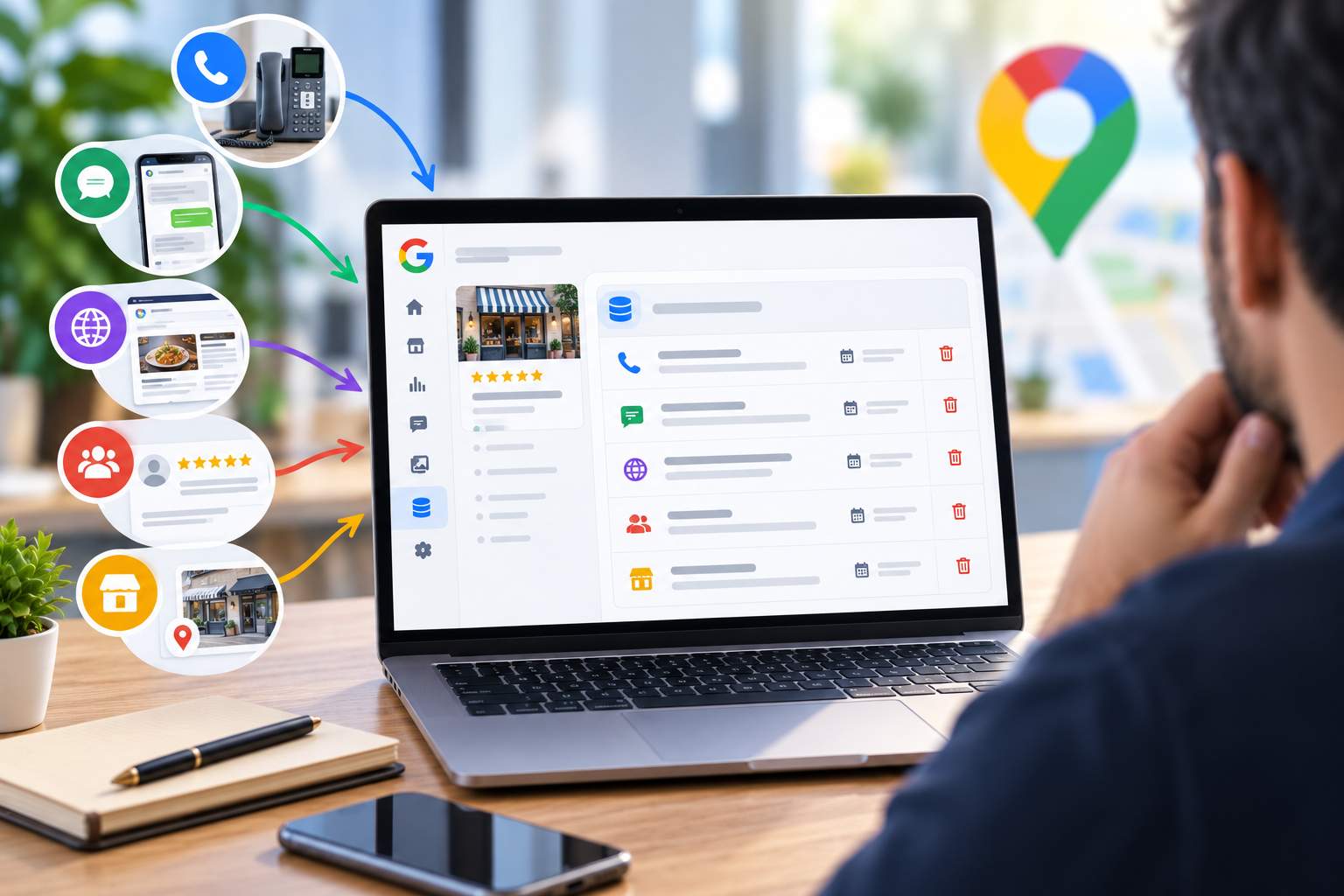
According to a study by Business E-réputation, 40% of consumers abandon a purchase after finding conflicting information about business hours. To avoid this problem, use tools like Google Business Profile to centralize the management of your hours. Then sync this information with your other platforms using connectors like Zapier or dedicated APIs.
Here’s a real-life example: A florist in Lyon saw his revenue drop by 15% after updating his hours on Google but not on his website. Customers who checked both sources were confused and chose a competitor. After correcting this mistake, he regained 80% of his lost customers within a month.
schedules posted without human verification
Some companies automate the updating of their schedules using third-party tools. While this solution may seem convenient, it comes with risks. Synchronization errors, technical glitches, or incomplete updates can cause your schedules to be inaccurate for days or even weeks.
A medical practice in Nantes learned this the hard way. After automating the updating of its schedule using management software, it discovered that the Wednesday afternoon schedule was no longer displaying correctly. For three weeks, patients showed up for appointments that didn’t exist. The practice lost 12 appointments, amounting to nearly €900 in lost revenue. Worse still, its Google rating dropped from 4.7 to 4.1 stars due to negative reviews.
To avoid this type of problem, manually check your schedules at least once a week. Use tools like Google Search Console to detect display errors, and train your teams to spot inconsistencies.
How to Prevent Google from Messing Up Your Schedule
Google isn’t your enemy, but its algorithm can sometimes work against you. Here’s how to regain control and prevent technical errors from turning your schedules into a trap for customers.
Why Google Changes Your Schedule Without Your Consent
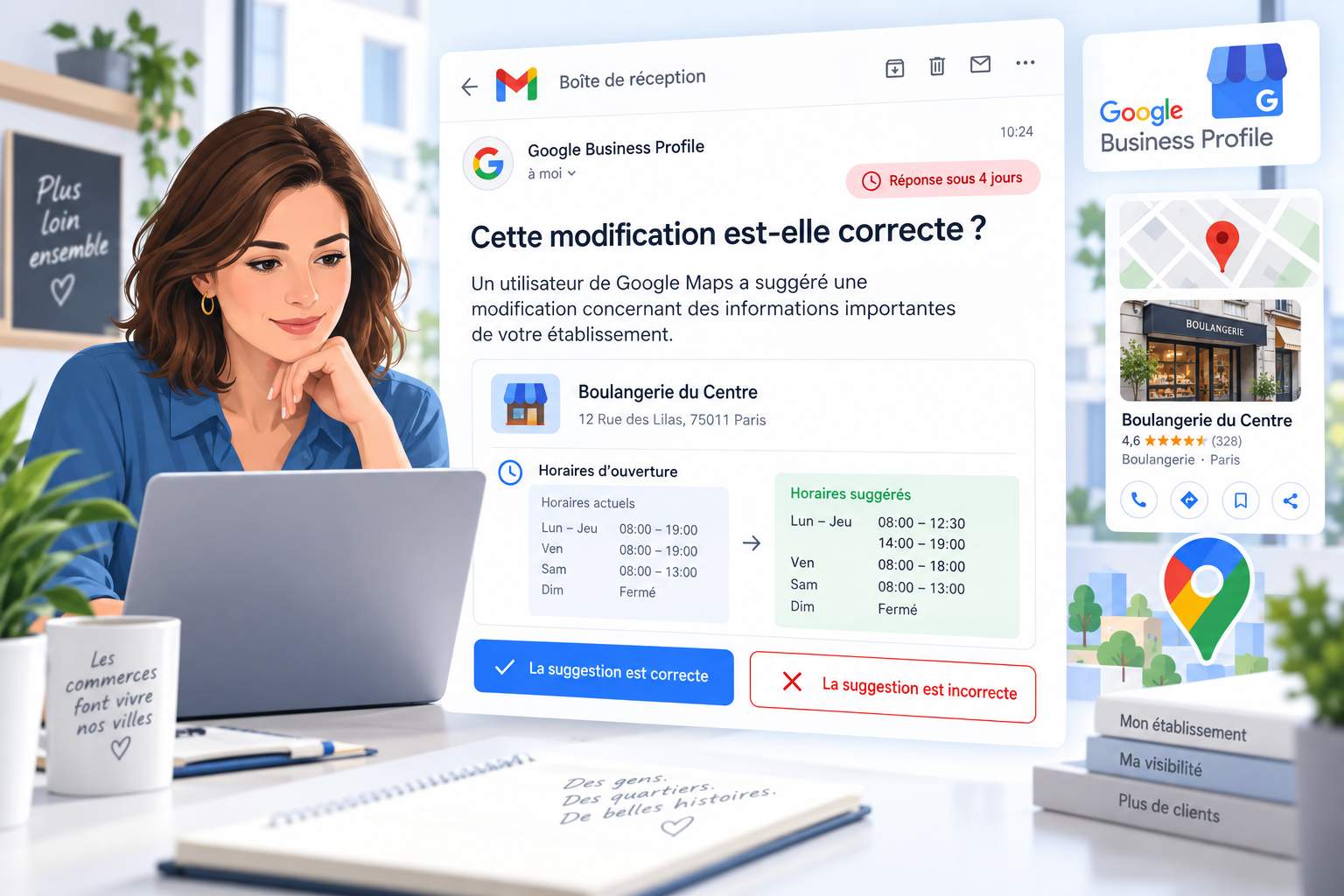
Google uses algorithms to cross-reference information available on the web and provide “optimized” schedules to its users. The problem? These algorithms are based on data that is sometimes outdated, incomplete, or incorrect. For example, if a third-party site displays incorrect hours for your business, Google may adopt them as its own, even if you’ve corrected them on your business listing.
A striking example: A hotel in Marseille had its opening hours automatically changed by Google after a booking site published incorrect information. For two weeks, Google showed that the hotel was open 24 hours a day, even though it closed at midnight. The result? Dissatisfied guests showing up in the middle of the night, and negative reviews that caused the hotel’s rating to plummet.
To avoid this kind of situation, regularly monitor third-party sources that list your business hours. Use tools like Moz Local or Yext to identify inconsistencies and correct them. If Google changes your business hours for no reason, report it through the management tool in your Google Business Profile.
Tools for monitoring your schedules in real time
Don’t let algorithms dictate your schedule. Here are a few tools to help you monitor and adjust it quickly:
- Google Alerts: Set up alerts for your company name + “hours” or “open.” You’ll be notified as soon as a website mentions your hours, allowing you to correct any errors quickly.
- Google Search Console: This tool lets you detect display errors on your Google listing, including issues with business hours. Use it to verify that your information is being displayed correctly.
- BrightLocal: This software, which specializes in local SEO, helps you monitor your business hours across multiple platforms (Google, Facebook, Waze, etc.) and detect inconsistencies.
- ReviewTrackers: This tool analyzes online reviews to identify mentions related to your hours of operation. If several customers complain about an error, you’ll be notified immediately.
An example of how it can be used: A bookstore in Toulouse used Google Alerts to discover that a booking website was displaying incorrect hours. By correcting the error within 24 hours, it avoided a wave of negative reviews and maintained its 4.8-star rating.
What to Do When Google Shows Incorrect Schedules
If you notice that Google is displaying incorrect hours, here’s what to do:
- Correct the error on your Google Business Profile. Sign in to your account and update your hours manually. Google usually processes changes within 24 hours.
- Check third-party sources. If a website displays incorrect hours, contact its administrator and ask them to correct them. Use tools like Moz Local to identify these sources.
- Report the issue to Google. If the error persists, use the Google Business Profile reporting tool to request a manual review. Please note that your business hours are correct on your website and other platforms.
- Communicate with your customers. If the issue has lasted several days, let your customers know via social media or your newsletter. Acknowledge the issue and apologize. This transparency can help limit the damage to your reputation.
A successful example: A restaurant in Lille discovered that Google had been displaying incorrect hours for a week. After correcting the error, it posted on Facebook to apologize and offer a free dessert to affected customers. The result? Several customers revised their negative reviews, and the average rating rose from 3.9 to 4.3 stars in one month.
Solutions to ensure you never lose a customer because of scheduling issues
An up-to-date Google listing isn’t enough. To permanently eliminate the risk of incorrect hours, you need to take a systematic approach that combines tools, processes, and training. Here’s how to do it.
Automating Schedule Updates: Tools and Best Practices
The first step is to automate the management of your schedule to avoid oversights. Here are a few tools and methods to help you do that:
- Google Business Profile: This free tool lets you manage your hours directly from your Google account. You can update your regular hours, as well as add special hours for holidays, vacations, or events. The benefit? Changes are reflected in real time.
- Zapier: This automation tool lets you sync your schedules across multiple platforms (Google, Facebook, Waze, your website, etc.). For example, you can set up a Zap so that any changes made on Google are automatically reflected on your website.
- Hootsuite: If you manage multiple social media accounts, Hootsuite lets you schedule posts to notify your customers of schedule changes. For example, you can announce a one-time closure a week in advance.
- Shared calendar: Use a Google or Outlook calendar to note your special schedules and share them with your team. This prevents oversights and keeps everyone informed in real time.
Here’s a real-world example: A veterinary clinic in Rennes automated the updating of its hours via Google Business Profile and Zapier. The result? No errors in the past two years, and a Google rating that rose from 4.2 to 4.7 stars. Customers appreciate the reliability of the information, and the team saves time on handling complaints.
train your teams in schedule management
Your employees are on the front lines when it comes to managing schedules. They need to know how to update them, but also how to communicate with customers if a mistake occurs. Here’s how to train them:
- Create an internal guide: Write a simple document explaining how to update schedules on Google, your website, and your social media accounts. Include screenshots and clear step-by-step instructions to avoid mistakes.
- Organize hands-on workshops: Train your teams to use tools like Google Business Profile or Zapier. Show them how to identify inconsistencies and correct them quickly.
- Simulate scenarios: Organize exercises to test your teams’ responsiveness. For example, ask them to correct a fictional schedule error in less than 10 minutes. This prepares them to react quickly if a real problem arises.
- Appoint a coordinator: designate one person to be in charge of reviewing the schedules each week. This person will also be responsible for training new employees and overseeing updates.
A success story: A hotel in Nice trained its staff in schedule management through monthly workshops. The result? No errors in the past year, and a Google rating that has risen from 3.8 to 4.5 stars. Guests appreciate the team’s responsiveness, as they quickly answer questions about schedules.
Plan ahead for changes: vacations, events, construction
Schedules often change due to holidays, local events, or construction. To avoid unpleasant surprises, plan ahead for these changes and communicate them in advance. Here’s how:
- Create an events calendar: note down all events that could affect your schedule (school breaks, holidays, construction, local events, etc.). Share this calendar with your team so everyone is informed.
- Update your hours in advance: Use the “Special Hours” feature in Google Business Profile to indicate temporary changes. For example, if you’re closing early for the holidays, add this information a month in advance.
- Post on social media: Let your customers know about schedule changes through posts on Facebook, Instagram, or Twitter. For example, you could post: “We will be closed on December 25. Happy holidays to everyone!”
- Use signs in your store: If you have a physical store, put up a sign to let your customers know about any changes to your hours. For example: “Closed at 6 p.m. on December 31 for New Year’s Eve.”
Here’s a real-life example: A bakery in Bordeaux planned ahead for changes to its hours during the summer break. It updated its hours on Google a month in advance and posted about it on social media. The result? No dissatisfied customers, and a Google rating that remained steady at 4.9 stars.
The Hidden Cost of Outdated Schedules: Real-Life Case Studies
The numbers don’t lie. Here are three real-life case studies that illustrate the financial and reputational impact of incorrect schedules—and how these companies turned things around.
Case #1: The bakery that lost 12,000 € in six months
A bakery in Lyon had been displaying incorrect hours on Google for several months. The problem? It opened at 6:30 a.m., but Google listed 7:00 a.m. The result? Some customers arrived too early and left frustrated, while others arrived too late and chose a competitor instead.
In six months, the bakery lost about 50 customers per week—nearly 1,000 customers in total. With an average purchase of €12, the loss in revenue amounts to €12,000. Worse still, its Google rating dropped from 4.8 to 3.9 stars due to negative reviews.
The solution? The bakery corrected its hours on Google and posted an apology on social media. It also offered a free coffee to affected customers. The result? 80% of customers returned, and its rating rose to 4.5 stars in three months.
Case #2: The auto repair shop whose rating dropped by 0.8 stars
A car repair shop in Toulouse had been displaying incorrect hours on Google for two weeks. The problem? Google indicated that the shop was open on Saturdays, when in fact it was closed. The result? Customers showing up for appointments that didn’t exist, and negative reviews that caused the garage’s rating to drop from 4.7 to 3.9 stars.
The direct cost? 15 canceled appointments, amounting to nearly €1,200 in lost revenue. The indirect cost? A drop in visibility on Google, which reduced the number of quote requests by 30%. The solution? The auto shop adjusted its hours and contacted every affected customer to apologize and offer a new appointment. The result? Its rating rose to 4.3 stars in one month, and it regained 70% of its lost customers.
Case #3: The restaurant that regained 80% of its customers in three weeks
A Parisian restaurant had been displaying incorrect hours on Google for a month. The problem? Google listed its closing time as 11 p.m., when in fact it closed at 10 p.m. The result? Customers arriving too late and leaving frustrated, and negative reviews that caused the restaurant’s rating to drop from 4.5 to 3.8 stars.
The direct cost? 20 last-minute cancellations, amounting to nearly €1,500 in lost revenue. The indirect cost? A 25% drop in foot traffic due to negative reviews. The solution? The restaurant adjusted its hours and posted an apology on Facebook. It also offered a free dessert to the affected customers. The result? 80% of customers returned within three weeks, and its rating rose to 4.2 stars.
| Company | Problem | Direct cost (€) | Impact on the Google rating | Solution Implemented | Result after correction |
|---|---|---|---|---|---|
| Lyon Bakery | Incorrect times (6:30 a.m. vs. 7:00 a.m.) | 12 000 | -0.9 stars | Proofreading + Communication | 80% of customers retained |
| Toulouse Garage | Closed on Saturdays (not listed) | 1 200 | -0.8 stars | Correction + personalized apology | 70% of customers retained |
| Restaurant in Paris | Closing at 10 p.m. vs. 11 p.m. (as posted) | 1 500 | -0.7 stars | Adjustments + Customer Compensation | 80% of customers retained |
Why do my schedules on Google change on their own?
Google uses algorithms to cross-reference information available on the web. If a third-party site displays incorrect hours for your business, Google may pick them up, even if you’ve corrected them on your listing. To avoid this problem, regularly monitor third-party sources and report errors to Google through your Google Business Profile.
How long does it take for Google to reflect my schedule updates?
Google typically processes schedule changes within 24 hours. However, if the error comes from a third-party source, it may take several days for the correction to take effect. To speed up the process, report the issue to Google and contact the administrator of the site displaying the incorrect hours.
How can I prevent my schedule from being changed by mistake?
To avoid errors, update your hours manually on Google Business Profile and sync them with your other platforms (website, social media, etc.). Use tools like Zapier or Moz Local to detect inconsistencies and correct them quickly. Also, designate someone on your team to check the hours every week.
What should you do if a customer leaves a negative review because of an incorrect schedule?
Respond to the review in a professional and transparent manner. Acknowledge the mistake, apologize, and explain the steps you’ve taken to prevent it from happening again. Also offer compensation (a discount coupon, a free product, etc.) to demonstrate your good faith. This approach can turn a critic into an advocate.
What tools can I use to track my schedule in real time?
There are several tools that can help you monitor your business hours: Google Alerts to receive notifications when your business hours are mentioned, Google Search Console to detect display errors, BrightLocal to monitor your business hours across multiple platforms, and ReviewTrackers to analyze reviews related to your business hours. These tools allow you to respond quickly if an error occurs.